
How to order on ProSMM
From creating your account to tracking your first order and getting help, here is every step with a screenshot. Most people place their first order in under five minutes.
Create your account
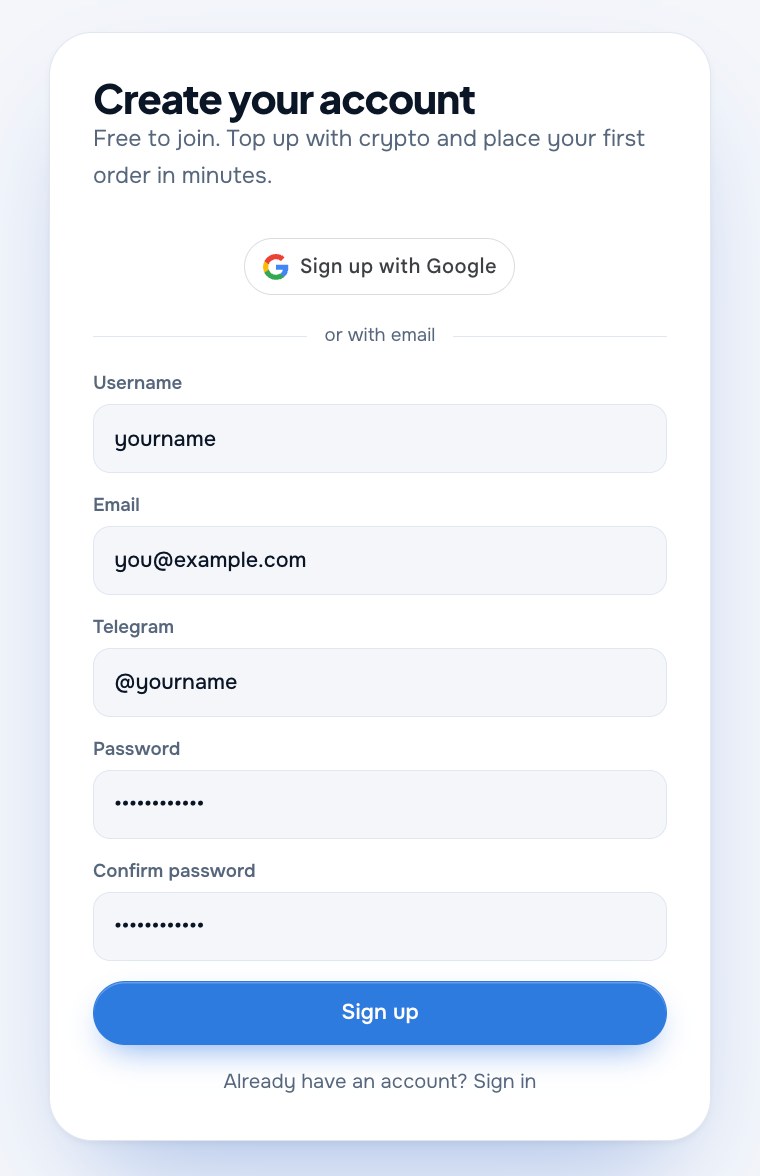
Click Sign up at the top of any page. You can join with your Google account in one click, or fill in the short form.
- Username: this is how you sign in later.
- Email: use one you check. Receipts and password resets go there.
- Telegram (optional): so our team can reach you faster about an order.
- Password: type it twice, then click Sign up. You land straight in your dashboard.
Add funds to your balance
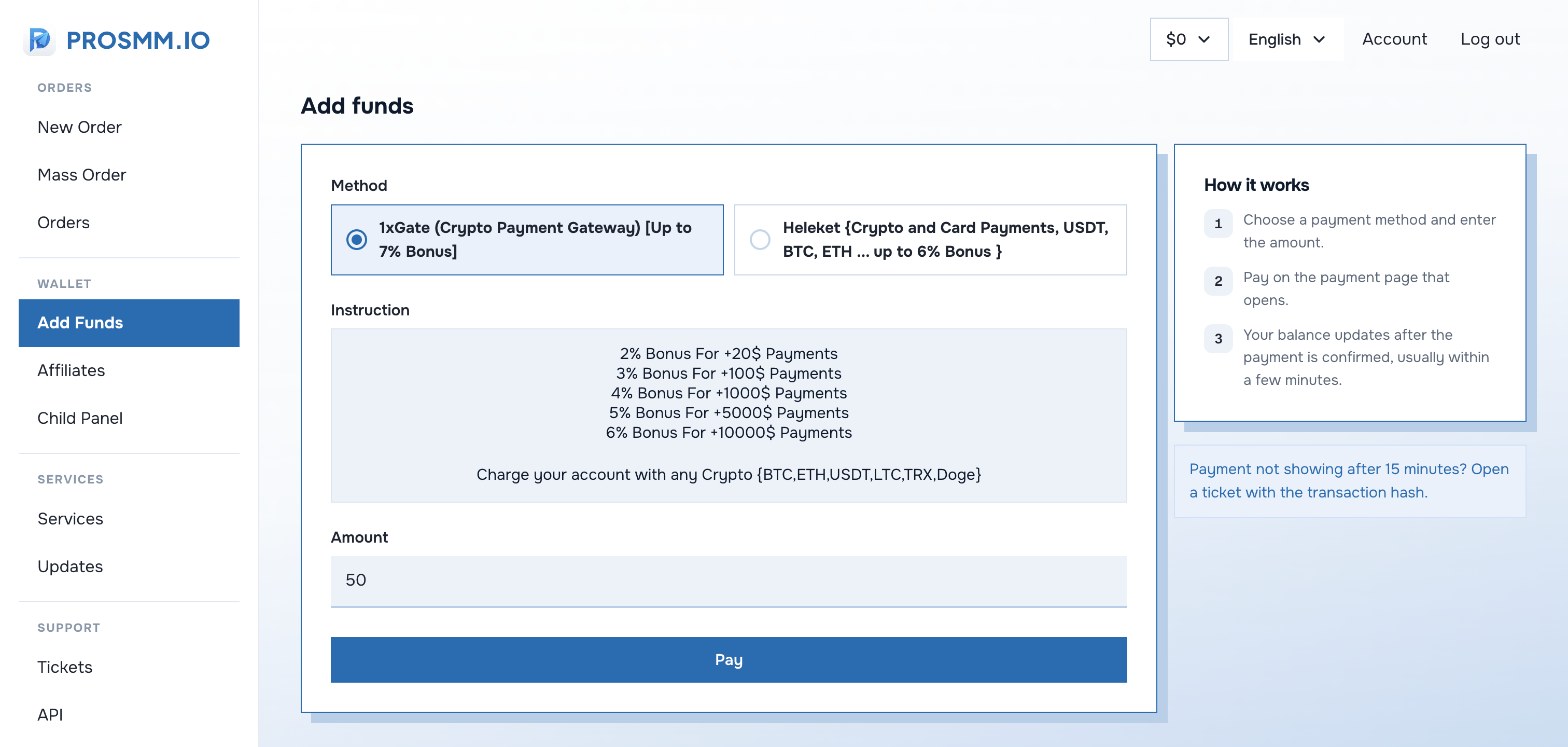
Orders are paid from your ProSMM balance, so top it up first. Open Add Funds in the menu.
- Choose a method. Crypto gateways accept BTC, ETH, USDT, LTC, TRX and DOGE; one method also takes cards.
- Read the instruction box. It shows the bonus you get on larger top-ups.
- Enter the amount in dollars and click Pay.
- Pay on the page that opens. Your balance updates as soon as the payment is confirmed, usually within a few minutes.
Find the right service
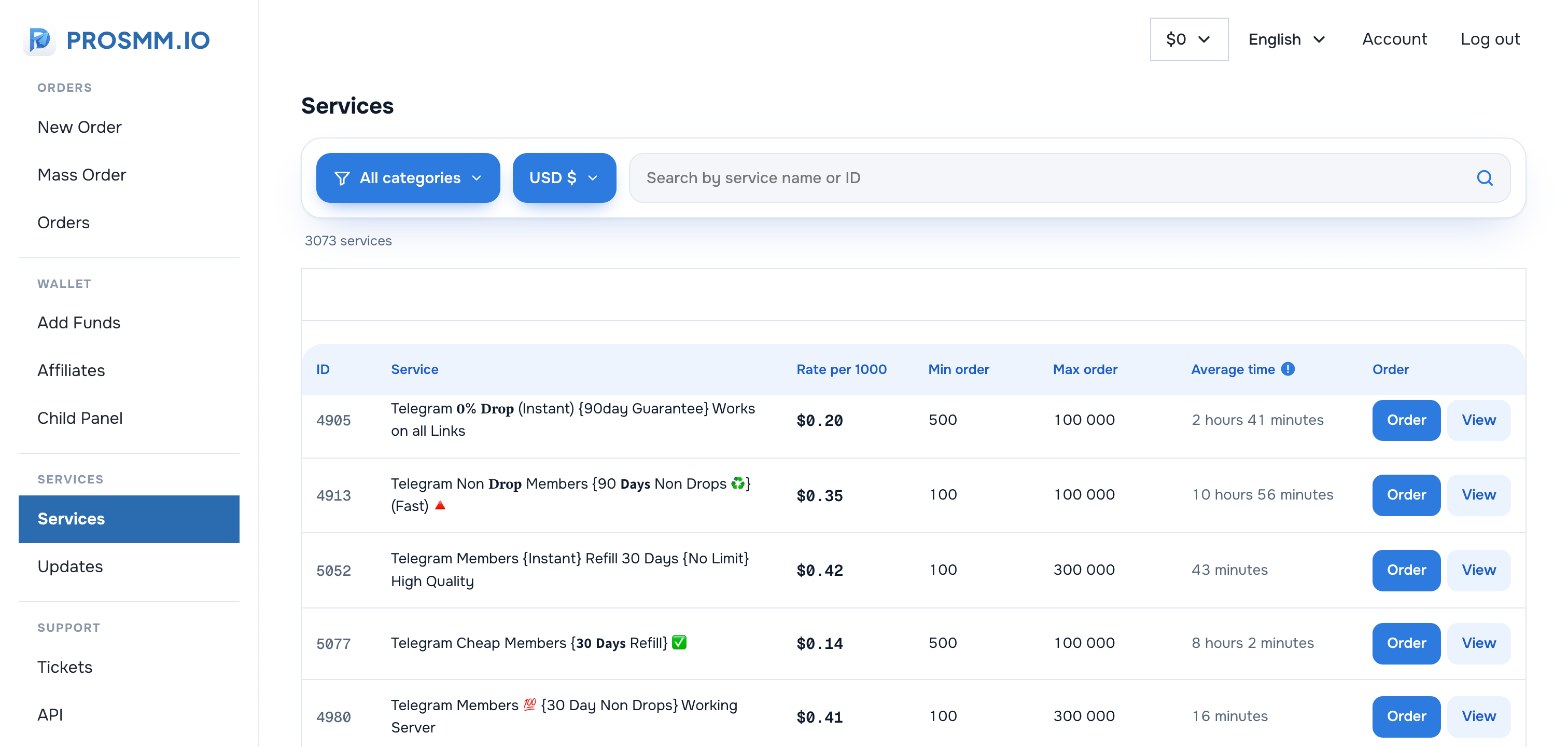
The Services page lists everything we offer with the price per 1,000, the minimum and maximum order and the average completion time.
- Filter by category with the blue button, or search by name or service ID.
- Switch the currency if you prefer to see prices in something other than USD.
- Click View to read a service's full description before you buy.
- Click Order to open the order form with that service already selected.
Place your order
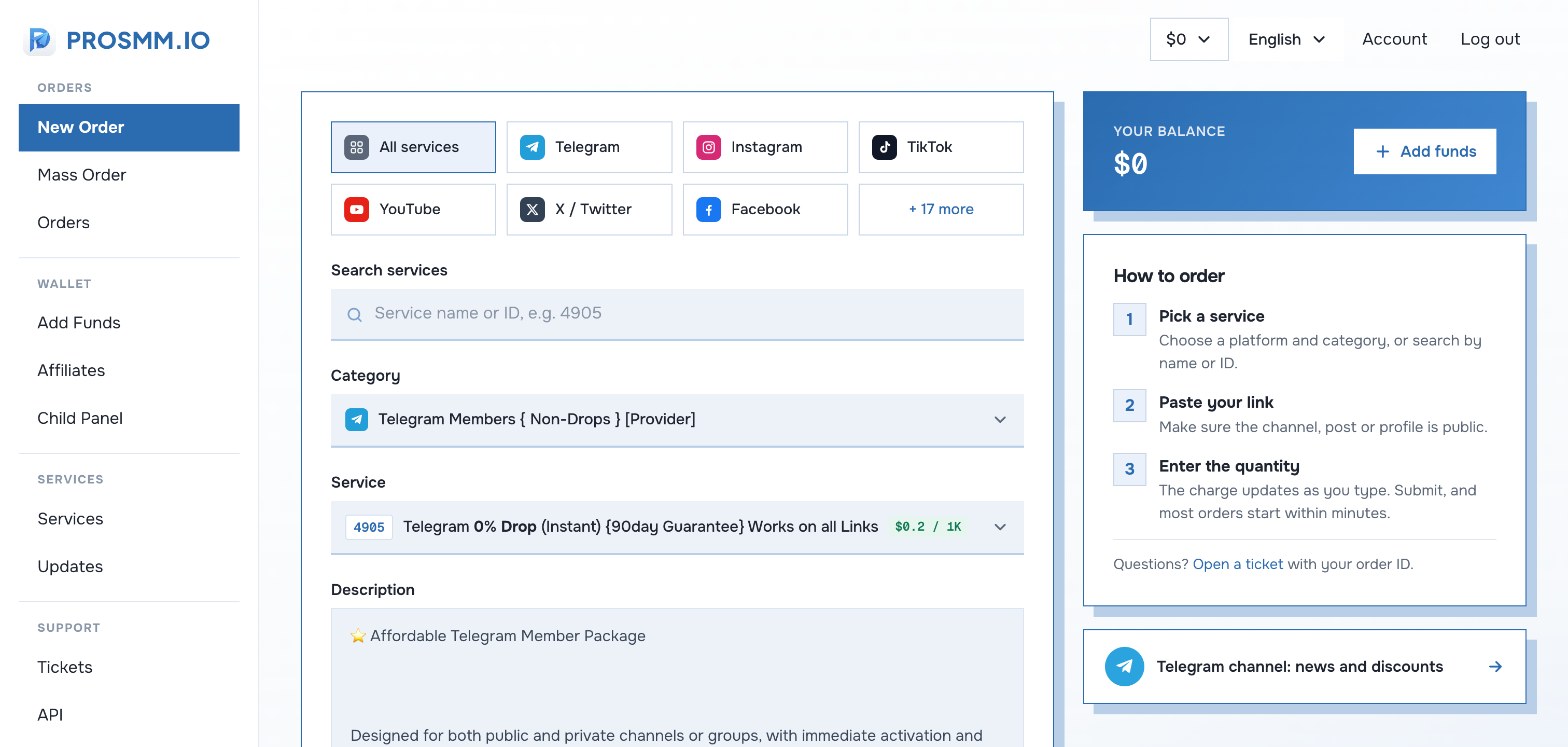
Open New Order. It's the first page you see after signing in.
- Pick a platform (Telegram, Instagram, TikTok…), then a category and a service. Or type the service ID in the search box.
- Read the description. It explains the start time, speed, refill terms and which links work.
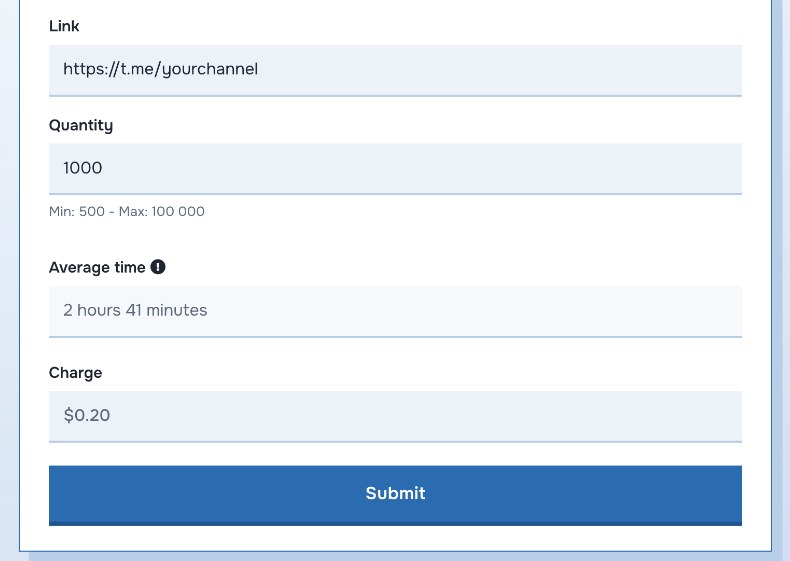
- Paste your link: the channel, group, post, profile or video the service should go to. It must be public.
- Enter the quantity between the min and max shown under the field. The Charge updates as you type.
- Click Submit. The charge comes off your balance and the order starts.
Track your order
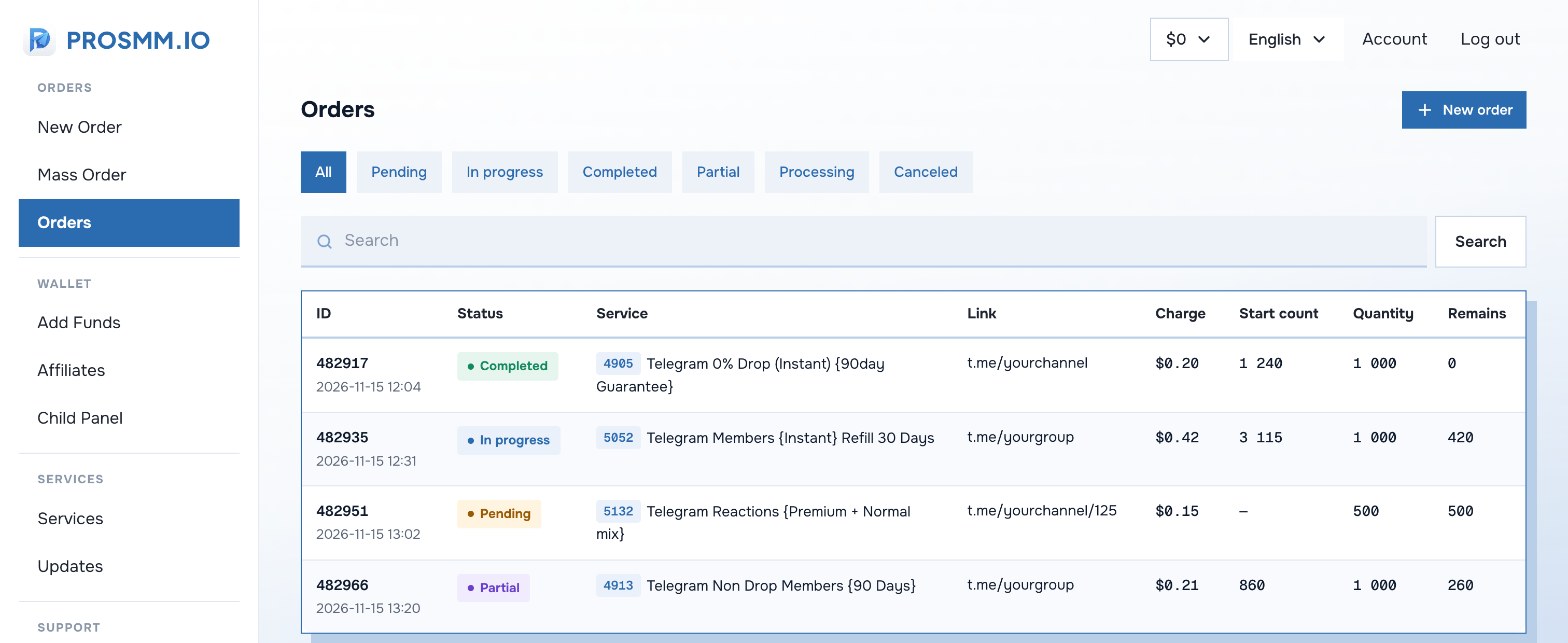
Every order appears in Orders with its ID, start count, quantity and what's left to deliver. Use the tabs to filter by status.
Get help with a ticket
Questions about an order or a payment go through Tickets, so the whole conversation stays in one place.
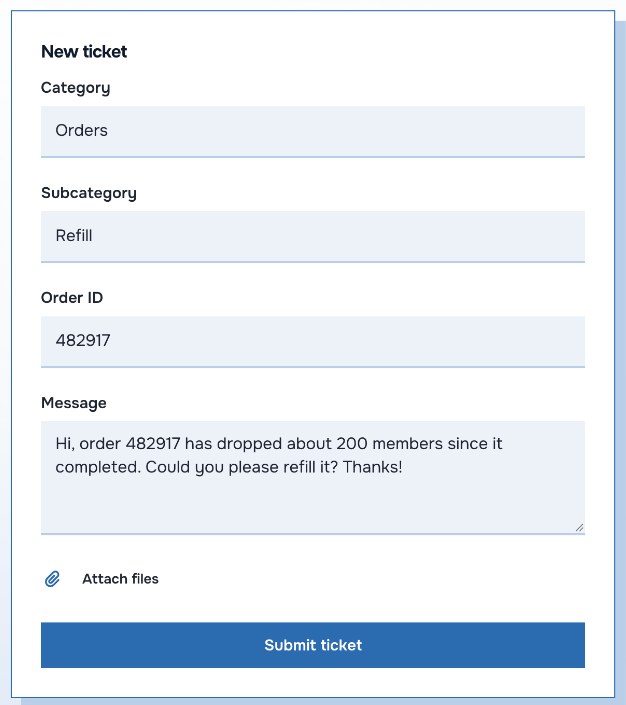
- Choose a category (Orders, Payments or Other) and a subcategory such as Refill, Cancel or Speed up.
- Add the order ID so we can find it right away. For payments, add the transaction hash instead.
- Describe the problem in a sentence or two. Attach a screenshot if it helps.
- Click Submit ticket. Replies appear under Your tickets on the same page.
Once you're comfortable
Common questions
Do you need my password or access to my account?
No. We only ever need the public link to your channel, post, profile or video. Never share your login details with anyone.
How fast does an order start?
Each service shows its start time in the description and its average completion time on the order form. Many start within minutes.
What if my numbers drop after the order completes?
Choose a service with a refill guarantee. If it drops within the refill period, press Refill on the order or open a ticket with the order ID.
Can I get my money back?
If an order is canceled or only partly delivered, the undelivered part is refunded to your ProSMM balance automatically, and you can use it for your next order.
My payment went through but my balance is still $0.
Crypto payments need a few network confirmations. If nothing shows after 15 minutes, open a ticket in the Payments category with the transaction hash.
Ready for your first order?
Create a free account, add funds and you're set in minutes.